 StudyMap
How to make a study area map for your thesis or paper
Almost every thesis or paper about a place needs one figure: a map that shows where the work was done. This guide explains what that map has to show, the sizes journals ask for, and how to make one in a few minutes without GIS software.
Make your map now, free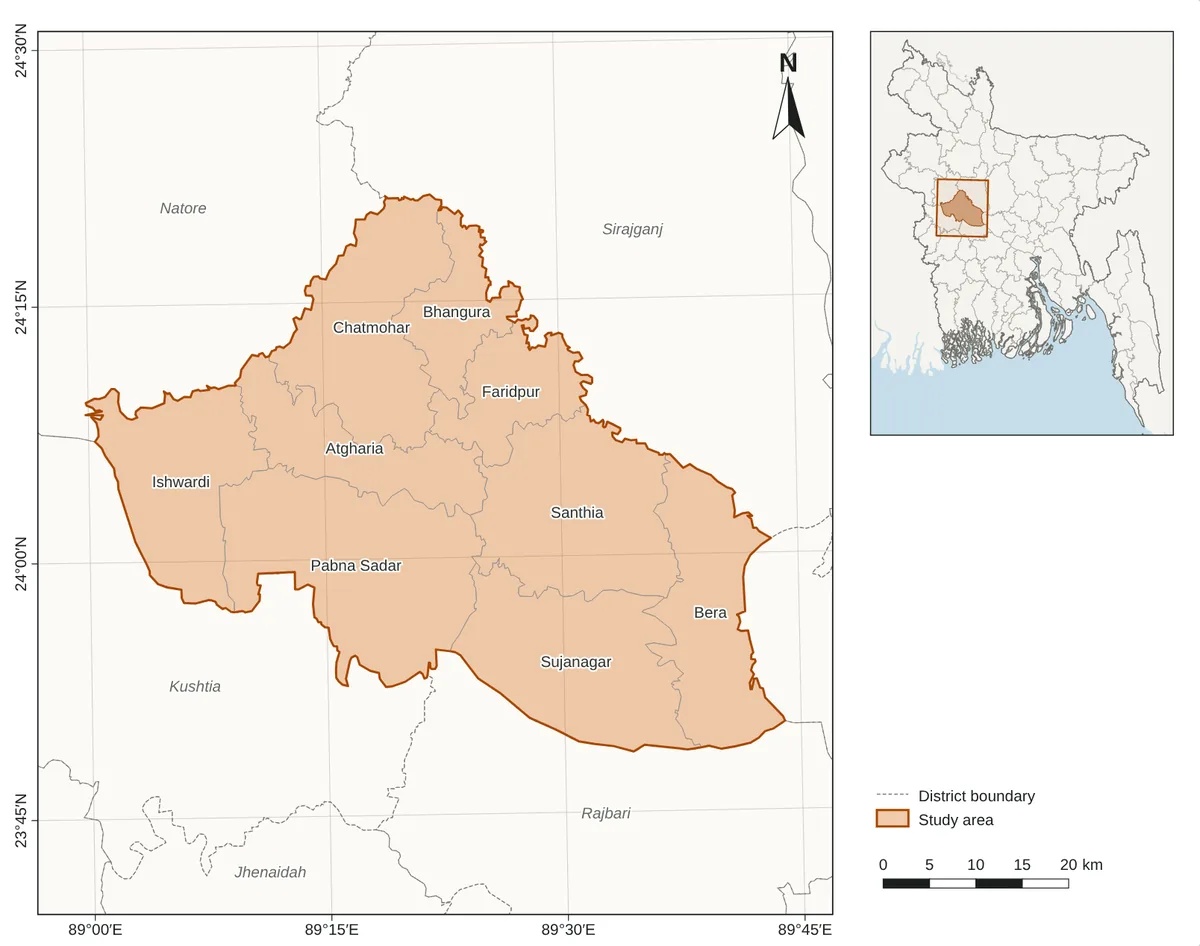
What a study area map must show
Reviewers look for the same parts every time. A map without them often comes back with "please improve Figure 1".
- The study area, clearly outlined or shaded, with the names of the places in it.
- An inset map showing where the area lies in the country or region.
- Coordinates on the frame (latitude and longitude), so readers can find the place.
- A scale bar in kilometres or metres.
- A north arrow.
- A legend explaining the colours and lines.
- The data sources, in the caption or on the map.
How to make one in StudyMap
- Search for your place. Type a district, upazila, city, park or village. Official boundaries come first, so the outline matches the real borders. You can also open your own shapefile, GeoJSON or KML, or draw the area by hand.
- Choose your journal. Pick Elsevier, Springer, MDPI, Nature, PLOS or another from the list. The page is set to that journal's column width.
- Check the map. The inset, coordinates, scale bar, north arrow and legend are already there. Add your sampling sites from an Excel or CSV file if you need them, and change colours or labels if you like.
- Download it. Choose PDF (vector, best for journals) or TIFF, PNG or SVG. Copy the ready caption with the data credits into your paper.
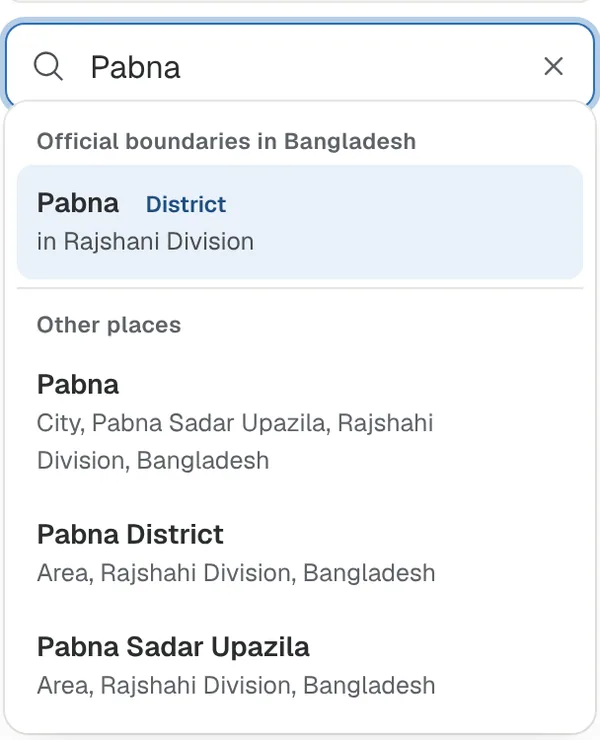
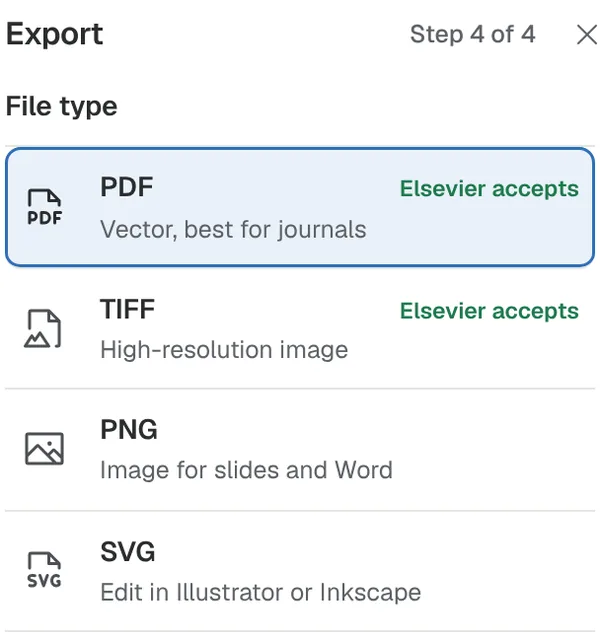
Figure sizes journals ask for
Journals print figures at the width of one or two text columns. Making the map at that exact width keeps the text readable after printing. These are the sizes StudyMap uses:
| Publisher | Single column | Full width | Raster resolution |
|---|---|---|---|
| Elsevier | 90 mm | 190 mm | 500 dpi or more |
| Springer | 84 mm | 174 mm | 600 dpi or more |
| Nature | 89 mm | 183 mm | 450 dpi or more |
| Wiley | 80 mm | 180 mm | 600 dpi or more |
| MDPI | (not fixed) | 170 mm | 600 dpi or more |
| PLOS | 132 mm | 190 mm | 300 dpi or more |
| Frontiers | 85 mm | 180 mm | 300 dpi or more |
| IEEE | 88.9 mm | 182 mm | 600 dpi or more |
| A4 thesis | (not fixed) | 160 mm | 300 dpi or more |
Always check your journal's own author guide: rules change, and some journals have their own limits.
Showing a small area inside a bigger one
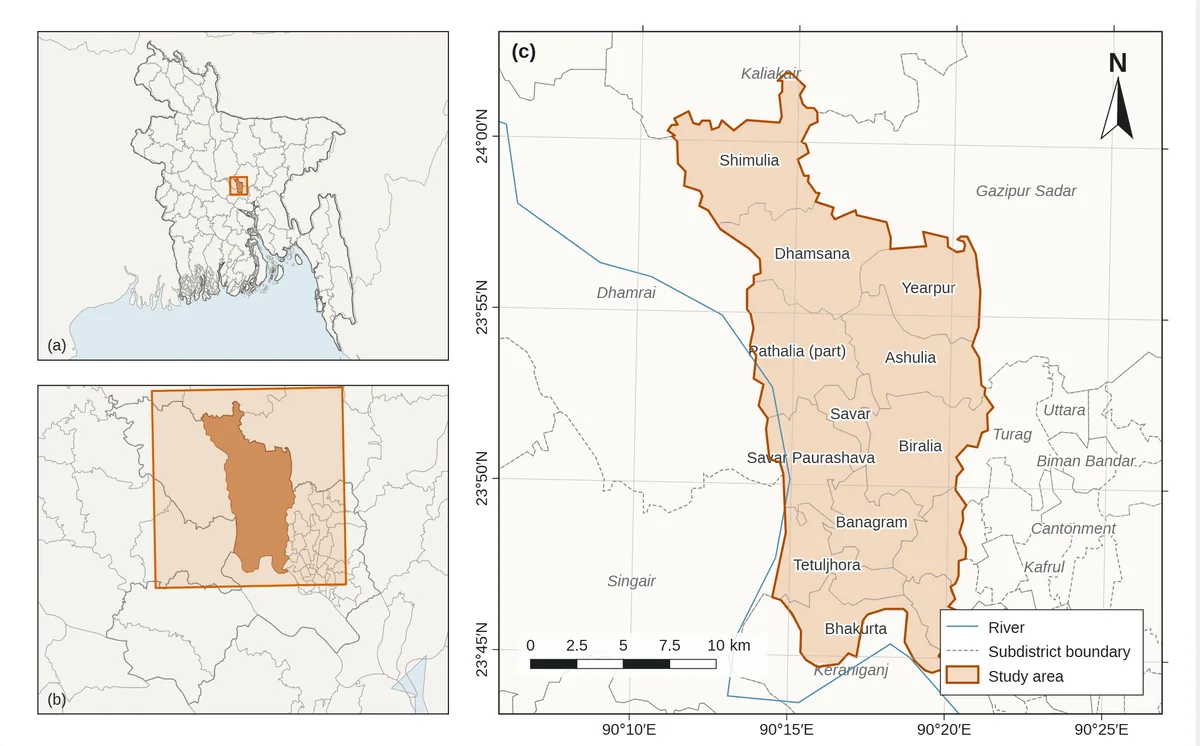
For an upazila or a village, one inset is often not enough. A "drill-down" figure shows the country, then the district, then your area, each in its own panel labelled (a), (b) and (c). StudyMap has this as a ready layout.
Common questions
Is StudyMap really free?
Yes. There is no sign-up, no watermark and no paid version. It is open source.
Are my files uploaded anywhere?
No. The files you open are read by your own browser and never leave your computer.
Can I use the map in a commercial journal?
Yes. StudyMap only uses map data whose licences allow publication (Natural Earth, geoBoundaries, OpenStreetMap and Copernicus elevation), and it writes the required credit into the caption for you.
Which projection should I use?
For a district or smaller area, the local UTM zone is the usual choice, and StudyMap picks it for you. You can switch to another projection or any EPSG code.
Can I edit the map later after reviewer comments?
Yes. Your maps are kept in your browser, and you can also save a project file and open it again later.
Make your map
It takes a few minutes, and you can change anything before you download.
Open StudyMap